
B2B Landing Page Optimization: Quick Tips for Long Sales Cycles
Your GA4 revenue doesn’t match Shopify, and someone has probably told you a gap is normal. Fine, but nobody says how big it should be or what’s inside it. We don’t think one “normal” percentage exists. The gap is a pile of separate causes, and you can measure each one. This post shows how. You match a single order first, then compare the full order lists, then put a number on every difference. Google’s and Shopify’s own documentation is our rulebook.

Before you suspect broken tracking, check that you’re comparing the same thing. The two tools define revenue differently.
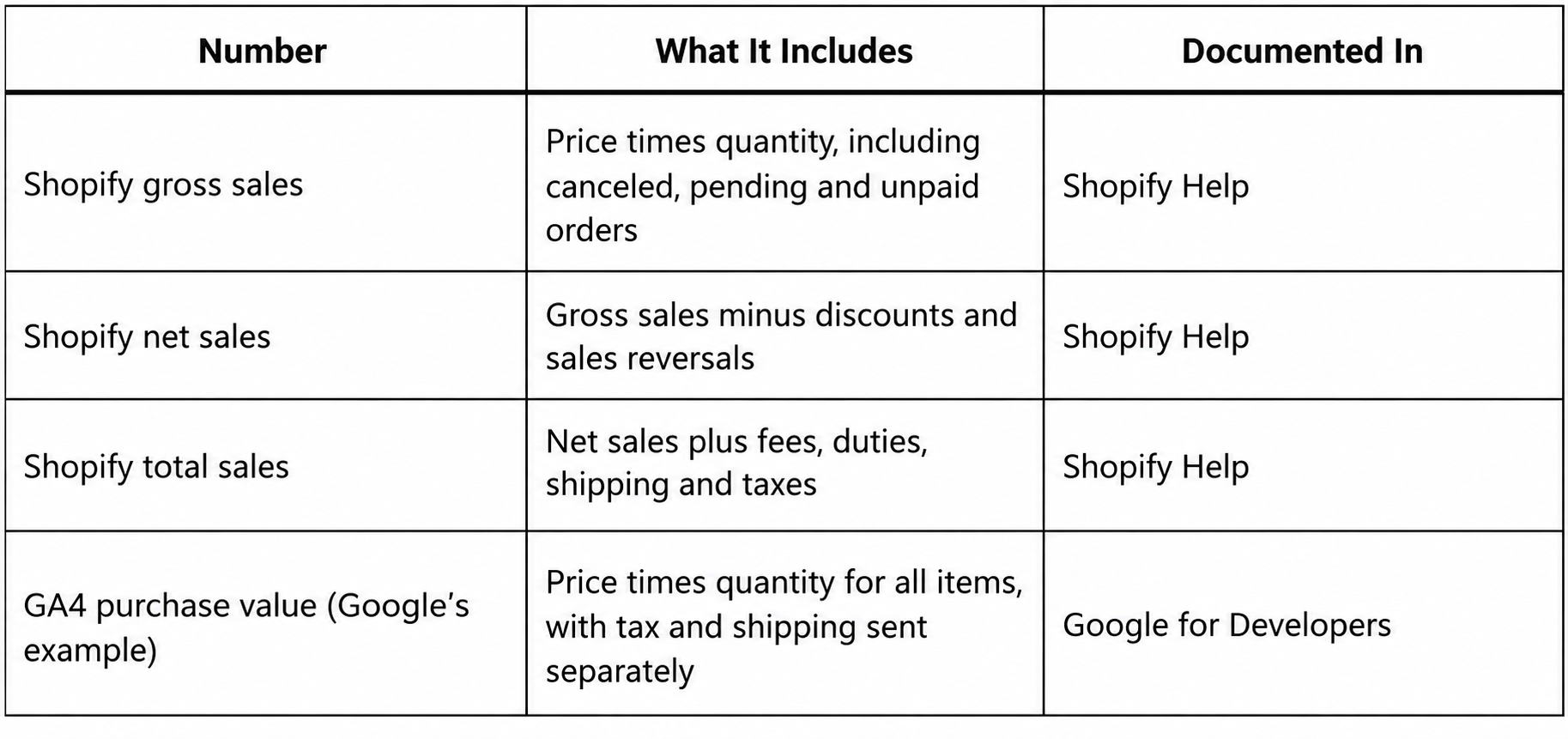
Shopify’s analytics fields define net sales as gross sales minus discounts and sales reversals. Total sales adds fees, duties, shipping and taxes on top of net sales. Gross sales, according to Shopify’s sales discrepancies page, is “product price multiplied by the quantity.” It also includes canceled, pending and unpaid orders.
Google’s own purchase example sends value with this comment: Sum of (price * quantity) for all items. The same sample passes tax and shipping as separate fields. That’s Google’s sample code, so your implementation may send something else.
So a store can have working tracking and still see two different totals. That’s why we start here.
Pick one recent, real order. Shopify’s Sales reports leave test orders out, so a real order keeps the comparison clean.
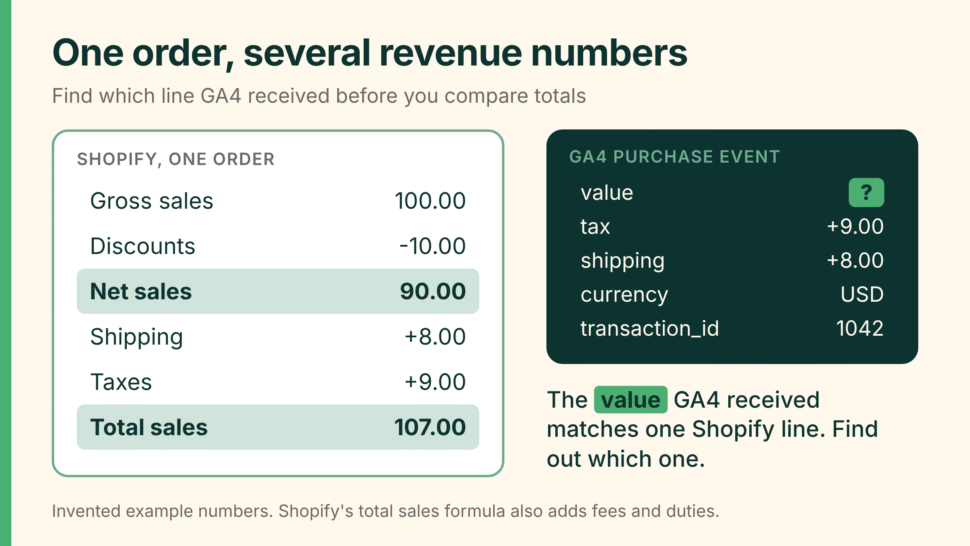
Find that order’s purchase event in GA4. DebugView works if you can place a fresh small order. Compare the event’s value, tax, shipping, currency and transaction_id with the order’s subtotal, discount, shipping, tax and total in Shopify.

The value GA4 received will line up with one of those Shopify lines. That tells you which Shopify number to compare against for the rest of the exercise. Skip this step and you’ll compare GA4 to total sales, then spend a week chasing shipping fees.
Then check the format. Google’s guide to missing revenue data lists the usual faults. A value sent as a string or with a currency symbol, such as “$100.00”. A misspelled parameter, or one sitting at the wrong level. A currency that isn’t a three-letter ISO code. A missing transaction_id or items parameter. Google names each of these as a cause of missing revenue data.
Totals hide the cause. Lists show it.
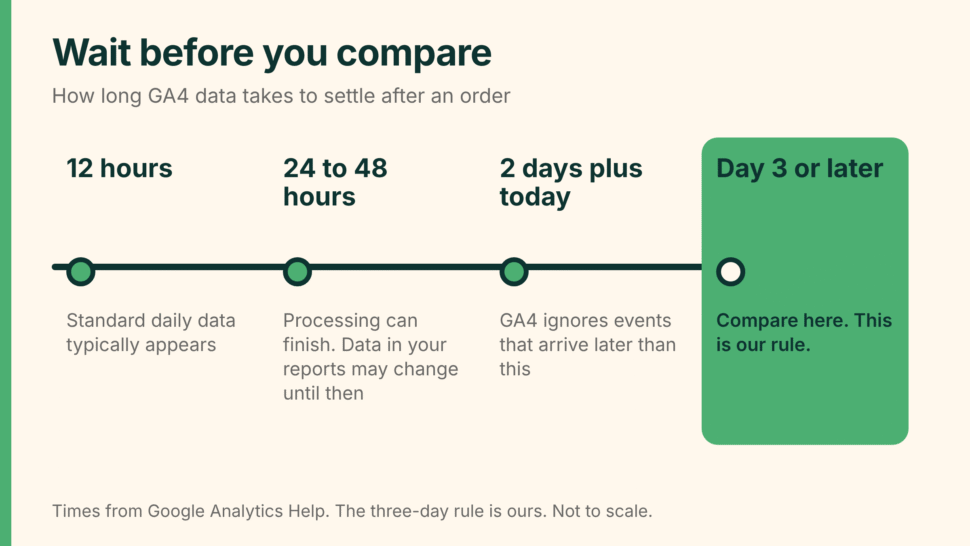
First, pick a date range that has settled. Google says standard daily data typically takes 12 hours. Processing can take 24 to 48 hours, and during that time “data in your reports may change.” Google also says GA4 ignores events that arrive more than 2 calendar days, plus today, after they were triggered. We compare ranges that ended at least three days ago. That three-day rule is ours, built from Google’s numbers.
Next, export your Shopify orders for the range. Remove test orders and any orders from channels that never touch your website, such as point of sale. Then pull the transaction IDs of GA4 purchases for the same dates. Transaction ID is an ecommerce dimension in GA4, and the BigQuery export carries it too.
If your store is busy, split the range into smaller chunks. Google warns that a high-cardinality dimension can hit a report’s or exploration’s row limit and fold the excess into an “(other)” row. Transaction ID has a different value on every order, so it’s one of those dimensions.
Match on order number and sort every order into four piles:
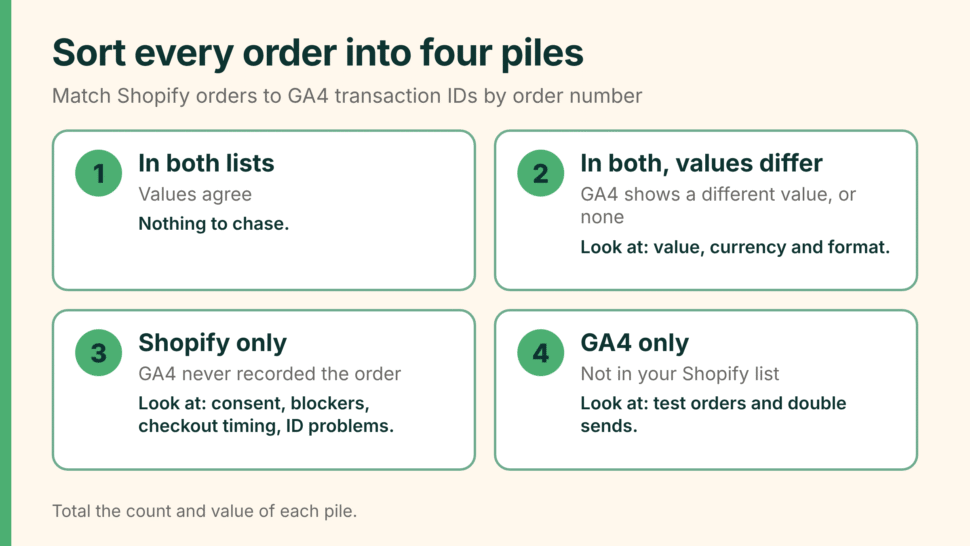
Total the count and value of each pile. Now the gap has parts.
These are real orders that GA4 never recorded. The documentation points to a short list of reasons.
Consent is the first. Shopify’s pixel manager loads an app pixel only when the visitor has given permission for every category that pixel declares as required. In a custom pixel, you set those categories in the admin. Check what yours requires, since a stricter setup means more visitors never load it. On Google’s side, events from visitors who decline consent aren’t reported unless modeling applies. Google says modeling covers metrics such as users, sessions and new users. It names page_view as an event count that isn’t modeled. We read that to mean purchases aren’t filled in either. Confirm that in your own property before you rely on it.

Blockers and cookies come next. Shopify’s help page says Google can only count visitors with JavaScript and cookies activated. It adds that customers can use browser extensions to block Google Analytics from tracking their sessions and purchases.
Checkout timing is the next suspect. Shopify’s checkout_completed event fires once per checkout, typically on the Thank you page. With upsells and post-purchase offers, it fires on the first upsell offer page instead. If the page meant to trigger it doesn’t load, the event doesn’t fire at all. A buyer who closes the tab early can leave an order GA4 never saw. If your old tracking lived in Additional Scripts, our guide to the new Shopify checkout stack covers what changed.
ID problems come last. Google warns that reusing a transaction ID across different orders can undercount purchases. It also says an empty transaction ID causes every purchase with an empty ID to be deduplicated into one.
Now tag each order in the Shopify-only pile with whatever your export holds, such as payment method or discount code. If the missing orders cluster on one payment method, look at that checkout path first. If they spread evenly, think consent and blockers. That’s our rule of thumb. Neither Google nor Shopify documents it.
Orders that GA4 has and your Shopify list doesn’t come from two places.
Test orders are the first. Shopify leaves them out of Sales reports but includes them in the orders export, and your GA4 tag may fire on them too. You removed them from the Shopify list earlier, so any that fired the real tag land here.
Double sends are the second. Google says GA4 deduplicates purchase events with the same transaction ID. That only works when the IDs match. If a site sends the same order twice with different IDs, GA4 keeps both.
This gap sits in the values and has nothing to do with lost orders. Shopify’s net sales takes sales reversals into account. Google’s guide says you measure refunds by sending a refund event with the transaction ID. It doesn’t say refunds are applied on their own.
So unless something sends refund events, GA4 can’t subtract returns. On a store with returns, we’d expect GA4 revenue to sit above Shopify’s net sales. Shopify also says a pending refund can show as a positive amount in Sales by channel until it completes. Match your refund dates to your date range.
Now price each pile. Start with the Shopify figure that matches GA4’s definition from the first order check. Then walk it down to what GA4 reported.
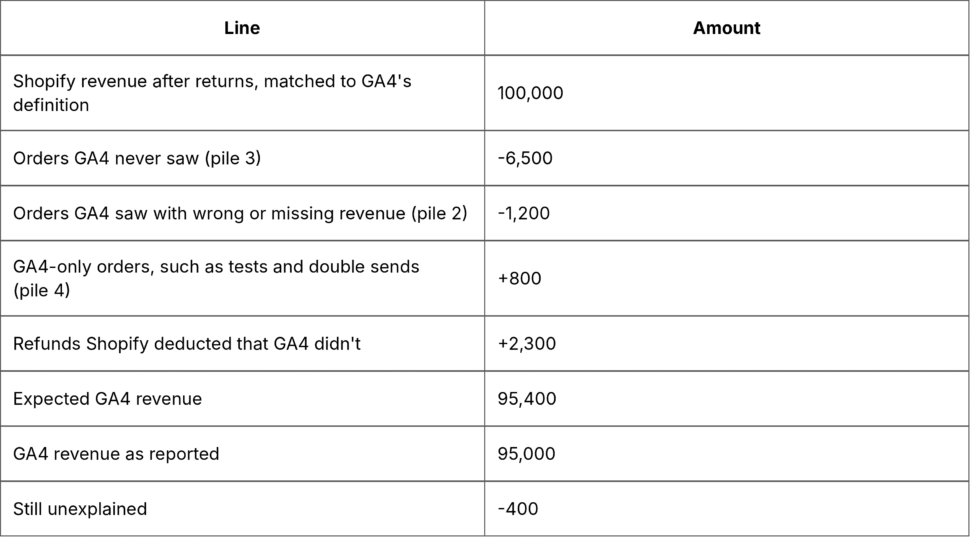
These numbers are invented to show the arithmetic. Yours will differ.
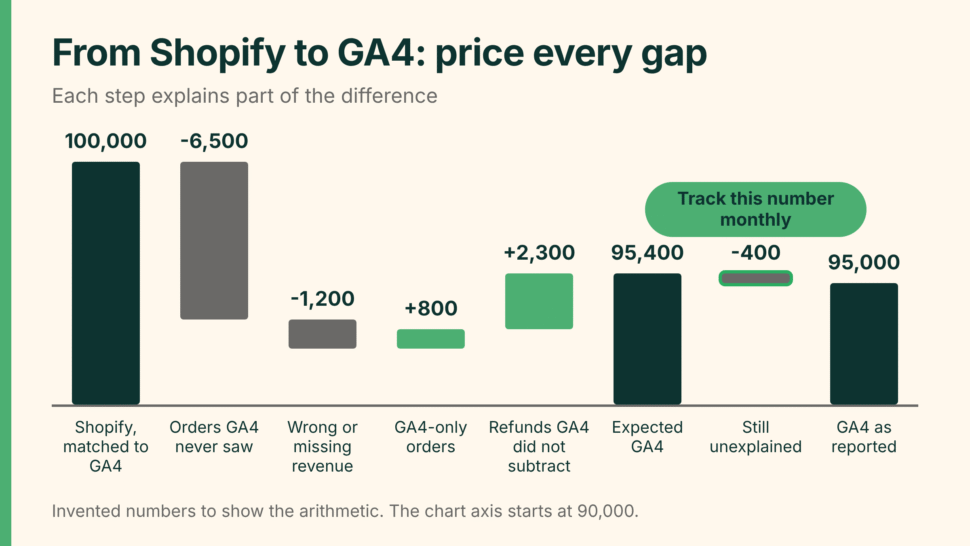
The last line is the one to watch. We don’t quote a normal gap, because none of the Google or Shopify pages we read gives one. Track your own every month. When it jumps, something changed. A theme update, a new app or a consent banner change are the usual suspects.
value, currency and transaction_id. They’re cheap to fix and they behave the same every time.Then decide which system owns which question. Our advice is to treat Shopify orders as the record for revenue and GA4 as the record for behavior. Write that down so nobody reopens the argument in a meeting.
Bad event data also corrupts A/B tests. Our post on the technical side of broken A/B test data covers the consent gap and ecommerce event schema gaps. And why A/B tests keep failing covers the analytics foundation that prevents both.
If you’d like help working through your own GA4 and Shopify numbers, we’ll go through your setup with you. Talk to our team about your analytics setup.
Some gap is expected. Shopify’s help page says analytics tools count differently, and it lists browser settings, extensions, time zones and different tracking methods as causes. How big a gap is acceptable for your store is something the order-list method above will tell you.
They answer different questions. Shopify records the orders customers placed. GA4 records what your tracking saw. We’d use Shopify for revenue and GA4 for visitor behavior.
Google says standard daily data typically takes 12 hours and processing can take 24 to 48 hours. We compare ranges that ended at least three days ago.
Google’s ecommerce guide says to measure refunds by sending a refund event with the transaction ID. It doesn’t say refunds are applied automatically, so check whether your setup sends them.